
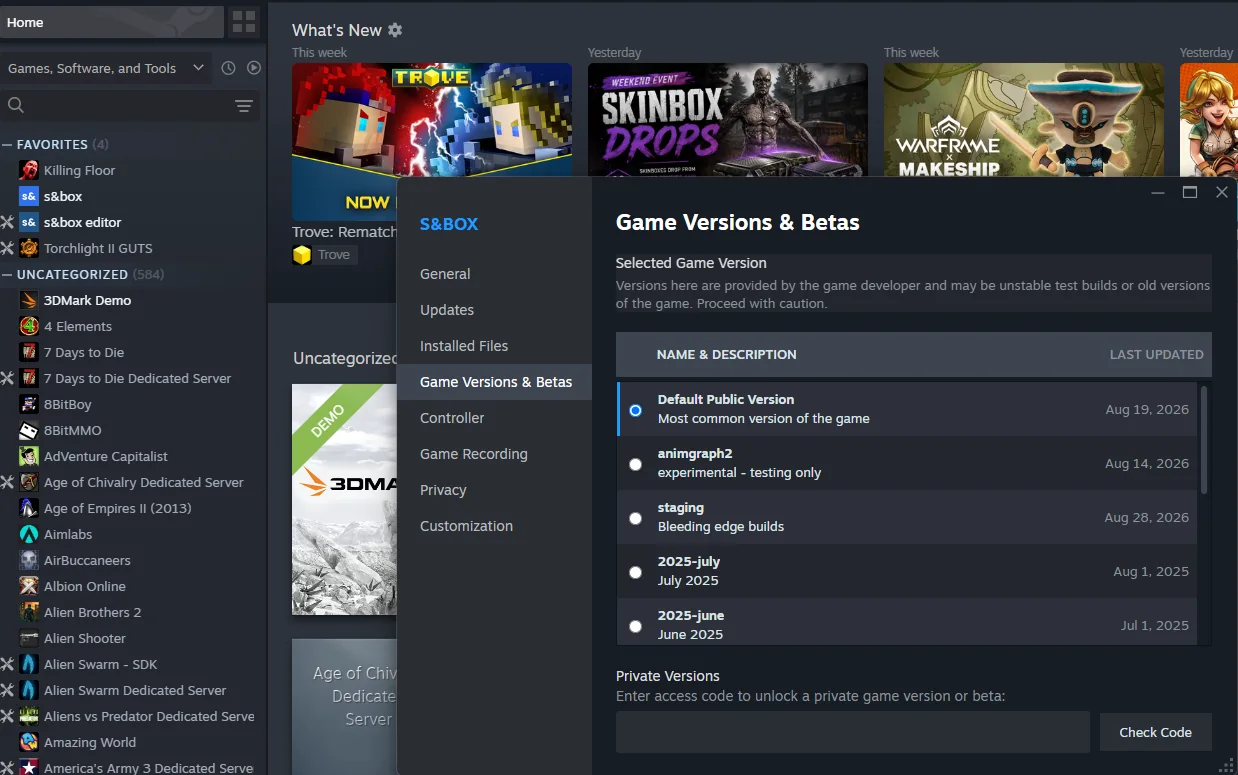
Facepunch ships upcoming s&box changes to a Steam branch called staging. It gives creators a chance to open their projects against the next build, find problems early, and report them before the same changes reach the default public version.
Players can use staging to try new work early too, but it may be unstable. For developers, the important part is finding out whether an engine update breaks a game while there is still time to fix it.
What staging is
The default public version is the build most players use. Staging sits ahead of it. New APIs, editor changes, engine fixes, and occasional breaking changes arrive there before they move to the public build.
The engine’s development is visible in Facepunch’s sbox-public repository. Its master branch shows active work, while staging is the Steam build Facepunch provides for testing upcoming changes. They move closely, but a Steam build should not be treated as an exact copy of the latest GitHub commit.
Switch to staging in Steam
Steam now puts branch selection under Game Versions & Betas. Select staging for s&box; the editor changes with it, so there is no separate editor branch to select.
- Right-click s&box in your Steam library and open Properties.
- Open Game Versions & Betas and select staging.
- Wait for Steam to finish the download before opening your project.
Before you switch: Back up or commit your project before switching if you have work in progress.
Test more than the editor launch
A successful compile is a good start, not a complete test. Run through the parts of the game that depend most on the engine.
- Compile from a clean editor launch and check the console.
- Load the main menu and every important scene.
- Host and join a multiplayer session.
- Check UI, materials, shaders, audio, and asset loading.
- Open existing saves or other persistent data, if the game uses them.
- Start a dedicated server and connect to it, if the game supports one.
Report staging regressions
If something works on the default build and fails on staging, report it on the sbox-public issue tracker. Include the branch and build, a small set of reproduction steps, and the relevant logs. Screenshots or a short recording help when the problem is visual.
Before filing the issue, switch back to the default build and confirm the difference. That makes it much easier to separate a staging regression from a problem already present in the project.
Switch back before publishing
Use staging to test and fix the game, but return s&box to the default public version and run one final test before publishing. The editor changes back with it. If the project depends on an API that only exists on staging, wait until that API reaches the public build.
Facepunch has described staging uploads as playable only on staging at first, then becoming the live version when the engine update ships. That is useful for a planned rollout, but it also means a package built around unreleased behavior can eventually reach players on the normal build.
Publishing rule: Do not publish from staging unless you deliberately intend to ship a staging build. Test on staging; verify and publish on the default public version.